Every time a team adds a new data source, the same question comes up: should it connect directly to iP: Intelligence Platform, or should staff upload the files manually?
Knowing when to connect a source directly, and when a manual upload makes sense, helps protect the consistency, reporting, and confidence of everything downstream.
Both paths can bring data into the platform. But they do not create the same result once that data reaches your dashboards. The decision becomes easier when the tradeoffs are clear.
The Two Ways Data Enters iP
iP: Intelligence Platform supports two primary methods for bringing in device and third-party data.
A direct integration connects a supported vendor through an API, so data flows into the platform with less manual handling. Depending on the vendor, this can run on a recurring basis or be triggered by staff when needed, but the data always comes in through the connection rather than a file.
iP supports direct integrations with vendors across categories including GPS, force and timing, athlete monitoring, medical, and video. You can explore the current list here.
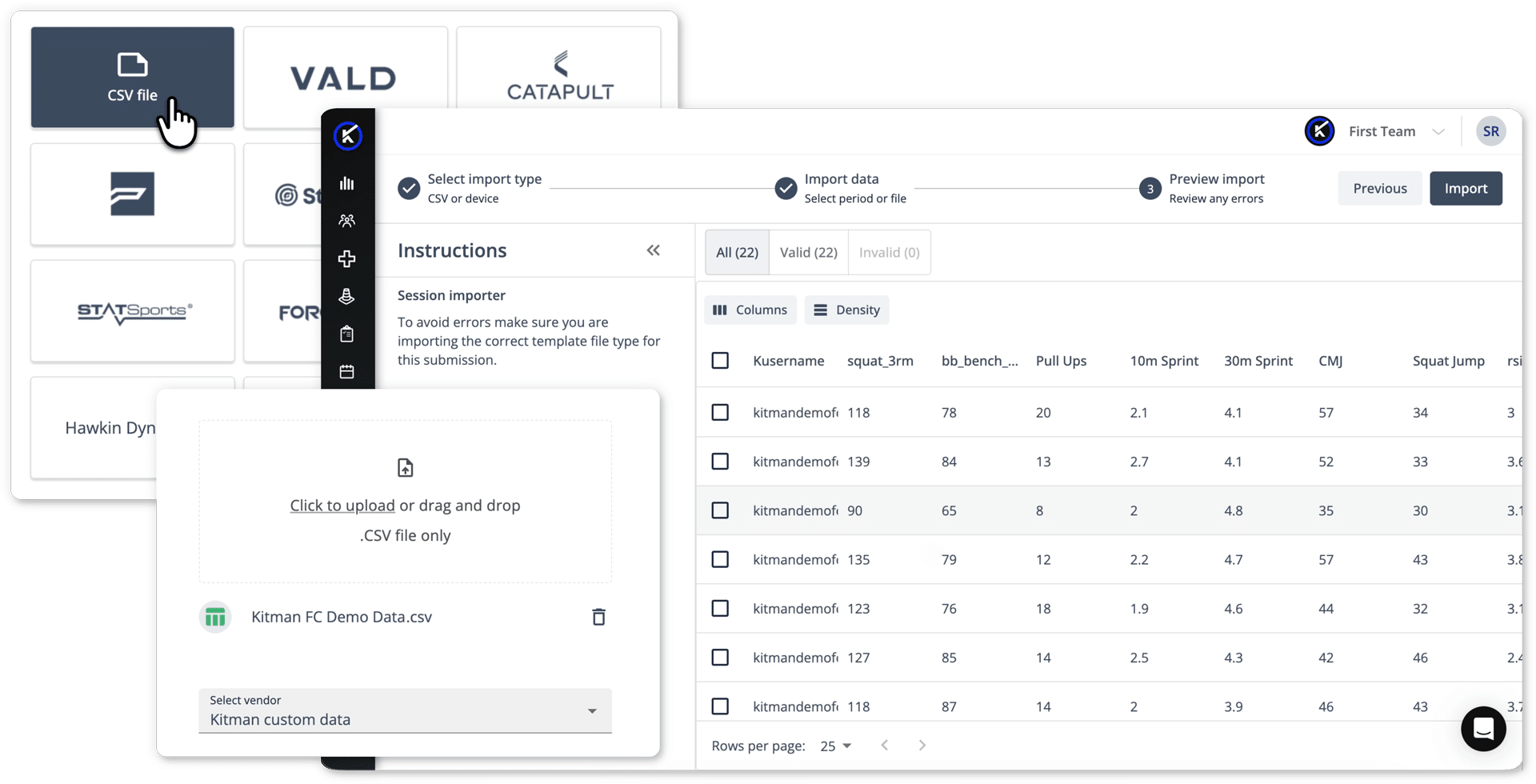
A manual upload brings data into iP through a formatted CSV file that staff export, check, and import.
The distinction matters because most of the effort, and much of the risk, sits in how the data arrives, not in the data itself.
Direct Integration vs. Manual Upload, Side by Side
| Direct integration | Manual upload | |
| How data gets in | Connected feed from a supported vendor via API | CSV file exported, formatted, and uploaded by staff |
| Effort per import | Minimal once configured. Recurring for some vendors, or staff-triggered when needed | Recurring export, formatting, checking, and import |
| Consistency and event classification | More standardized mapping and stronger alignment to the relevant event | Depends on correct formatting and selection each time |
| Cleanup and error risk | Fewer formatting and manual-entry errors. Source data can still contain issues, so imports can be reviewed before use. | Formatting and invalid-row issues can occur, though validation checks now flag many of them at import. |
| Custom metrics and tags | Easier to preserve through the connection | Must be mapped correctly in the file |
| Best suited for | Ongoing, higher-volume data sources from supported vendors | Historical data, one-offs, bespoke testing days, and vendors not yet supported |
Why Direct Should Be the Default
Direct integrations are strongest for the sources you use regularly. Instead of exporting, formatting, checking, and uploading files each time, staff work from a steady, standardized flow from supported sources.
That reliability matters. When data is ingested through a direct connection, it is easier to preserve the structure, context, and detail that make it useful for reporting. Custom metrics, tags, and vendor-specific fields can stay attached through the connection, so they are easier to use in dashboards without spreadsheet cleanup.
A direct connection also carries detail a file cannot. The most granular data, such as drill-level breakdowns within a session, comes in only through the API, giving staff a fuller picture to work from.
The benefit shows up in My iP. When sources feed in this way, dashboards are better positioned to reflect the current state of workload, readiness, and recovery, helping staff rely on what they see.
This is the foundation of broader data health. For the full picture of how iP keeps data clean at intake and over time, see our blog on data health in sport.
When a Manual Upload Makes Sense
Manual uploads are a fully supported path, not a stopgap. Plenty of teams work this way, and iP: Intelligence Platform is built to keep that experience clean.
They fit when you are importing historical data from before a connection existed, handling a one-off file for a single session or game, capturing a bespoke testing day such as preseason screening, or working with a vendor that is not yet directly supported. In those cases, a manual upload is the right fit.
When you upload a file, iP checks it for formatting and structural issues at import, so problems surface up front rather than downstream in your dashboards.
There is no need to move away from manual upload. The goal is to match the method to the source. For a feed your team relies on week after week, a direct connection usually gives a steadier foundation with less repeat handling. For historical data, one-offs, and bespoke work, a manual upload is the right tool for the job.
How iP Automates the Direct Path
For supported vendors, iP brings third-party data in through API-based workflows that reduce manual file handling. For certain vendors, this goes a step further: automatic imports can create the session or game in the system and bring the data in on a recurring basis, without a manual upload.
Automatic imports do not remove the need for oversight. Source files can still carry errors from the session itself, so staff can review incoming data and correct any issues before it reaches reporting.
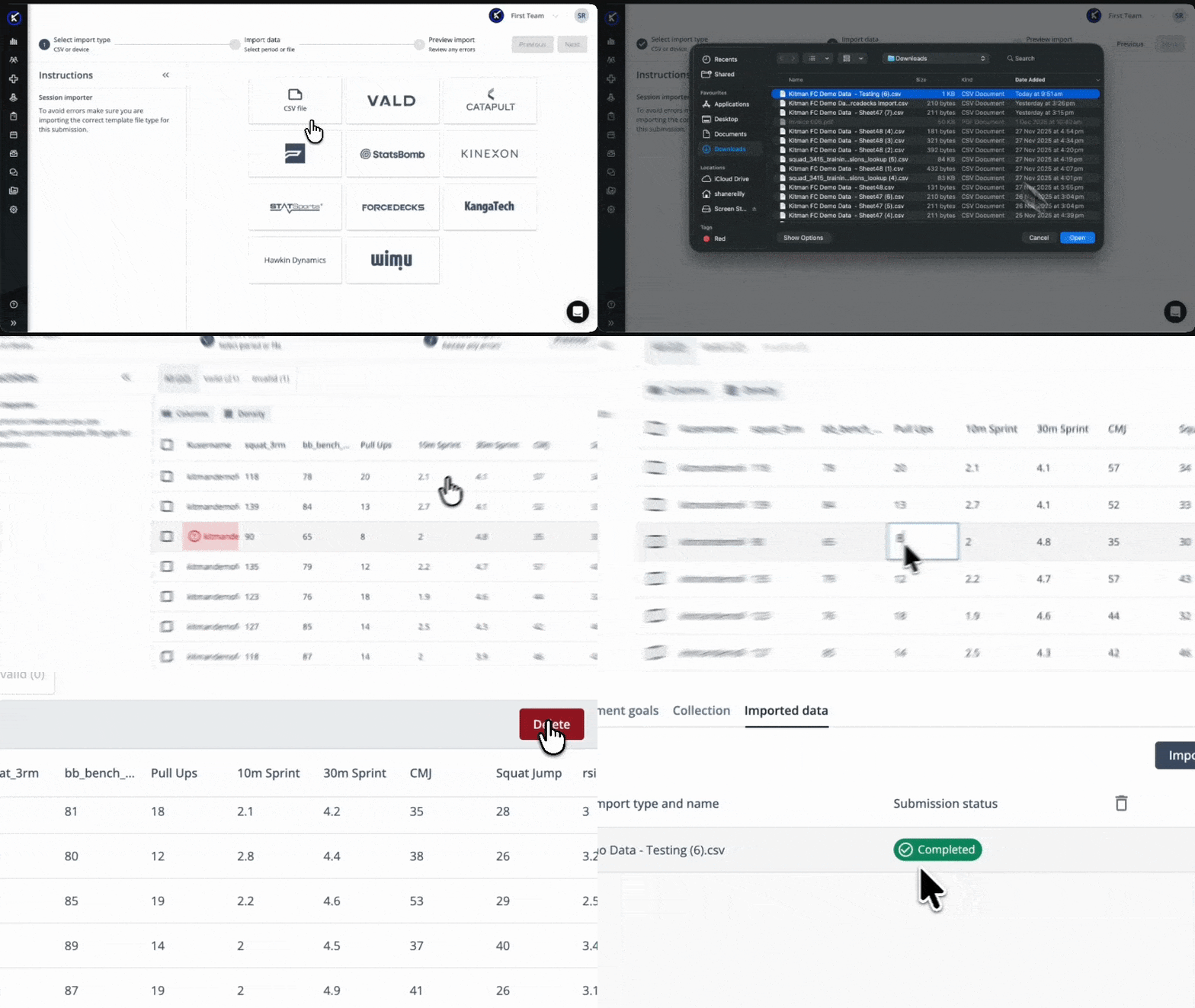
Incoming data can also be aligned to the right session or game, so planned context and actual output stay in one record rather than across mismatched entries.
That structure is what turns a connected source into something teams can act on. Once tracking data is unified in iP, it is easier to connect the numbers to the broader athlete record and use them in context.
For a closer look at how tracking technologies become more useful once their data is unified in iP, read our blog on sports tracking software.
The Bottom Line
There is no single right way to bring data in. Use a direct integration for the sources you rely on regularly, and a manual upload for historical data, one-offs, and bespoke work. Either way, the cleaner the data at intake, the more your team can trust everything built on top of it.
Already using iP? Log in to iP to access the Help Center article with step-by-step guidance for connecting supported vendors or importing third-party data for a session or game.
New to iP? Contact us to see how iP connects your data sources and helps keep reporting reliable across departments.